> ## Documentation Index
> Fetch the complete documentation index at: https://help.scribe-mail.com/llms.txt
> Use this file to discover all available pages before exploring further.
# Cal.com
> Keep email signatures accurate and up to date by syncing teammate details from Cal.com, your scheduling tool, so booking links stay current.
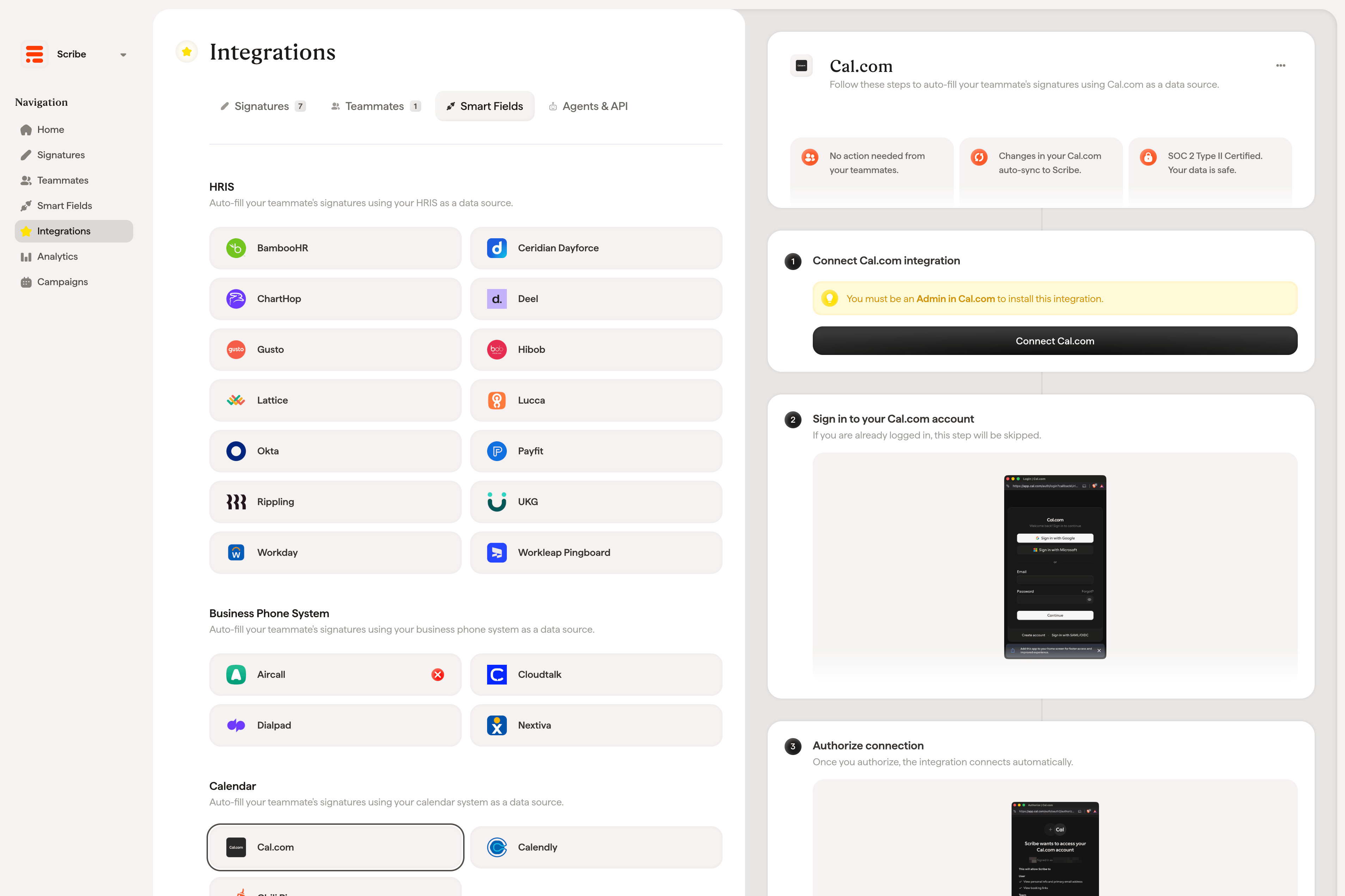
Follow these steps to [auto-fill your teammate's signatures](/en/smart-fields) using Cal.com as a data source.
**No action needed from your teammates.**
**Changes in your Cal.com auto-sync to Scribe.**
**SOC 2 Type II Certified.** [Your data is safe](/en/security/data-collection/calcom).
## Installation guide
### Prerequisites
* Admin or owner access to your Cal.com team or organization
* A Cal.com account on a Teams or Organizations plan
* A Scribe account with admin access
You must be an **Admin in Cal.com** to install this integration, and your Cal.com account must belong to a **team or organization**.
Click **Connect Cal.com** to start the integration.
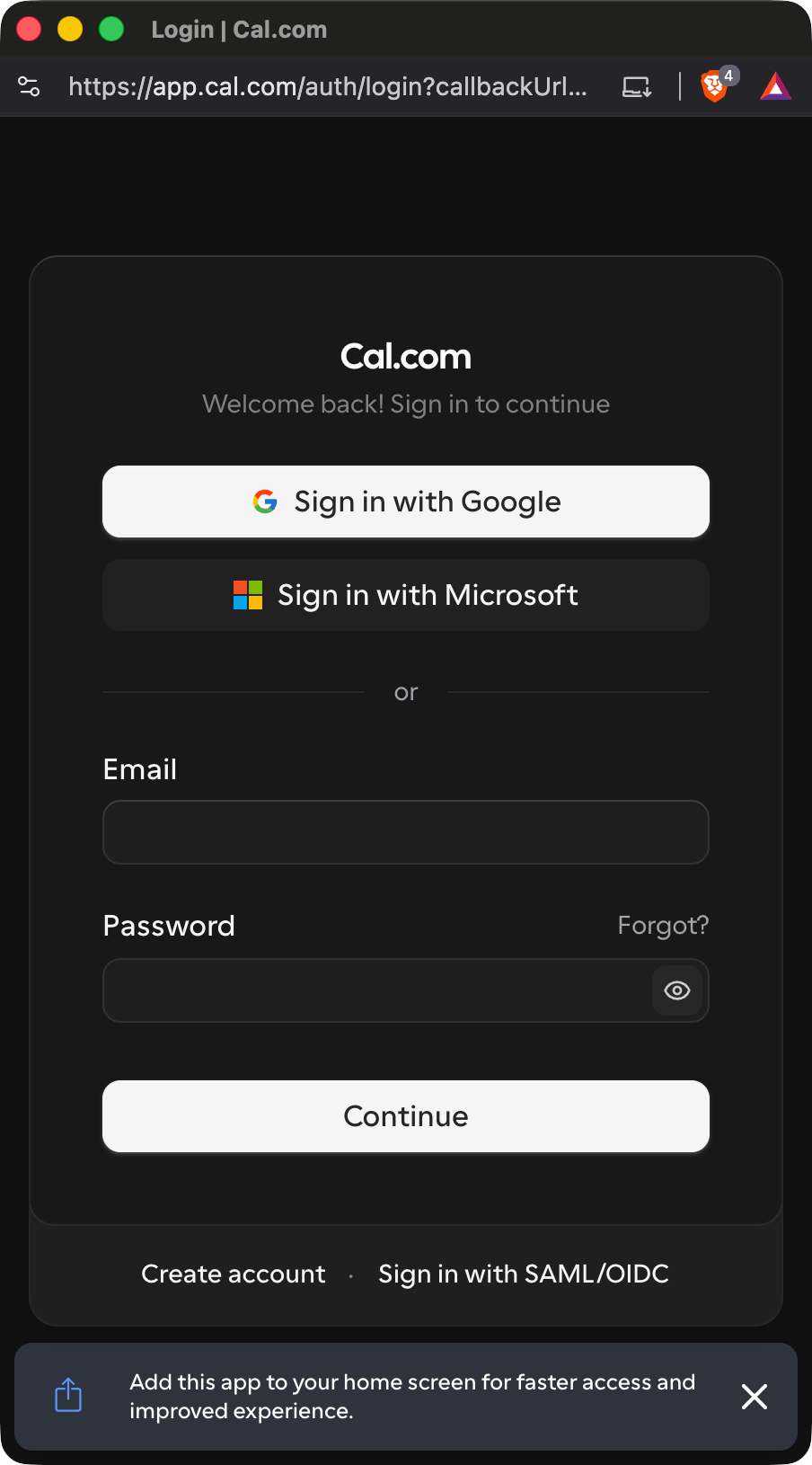
 If you are already logged in, this step will be skipped.
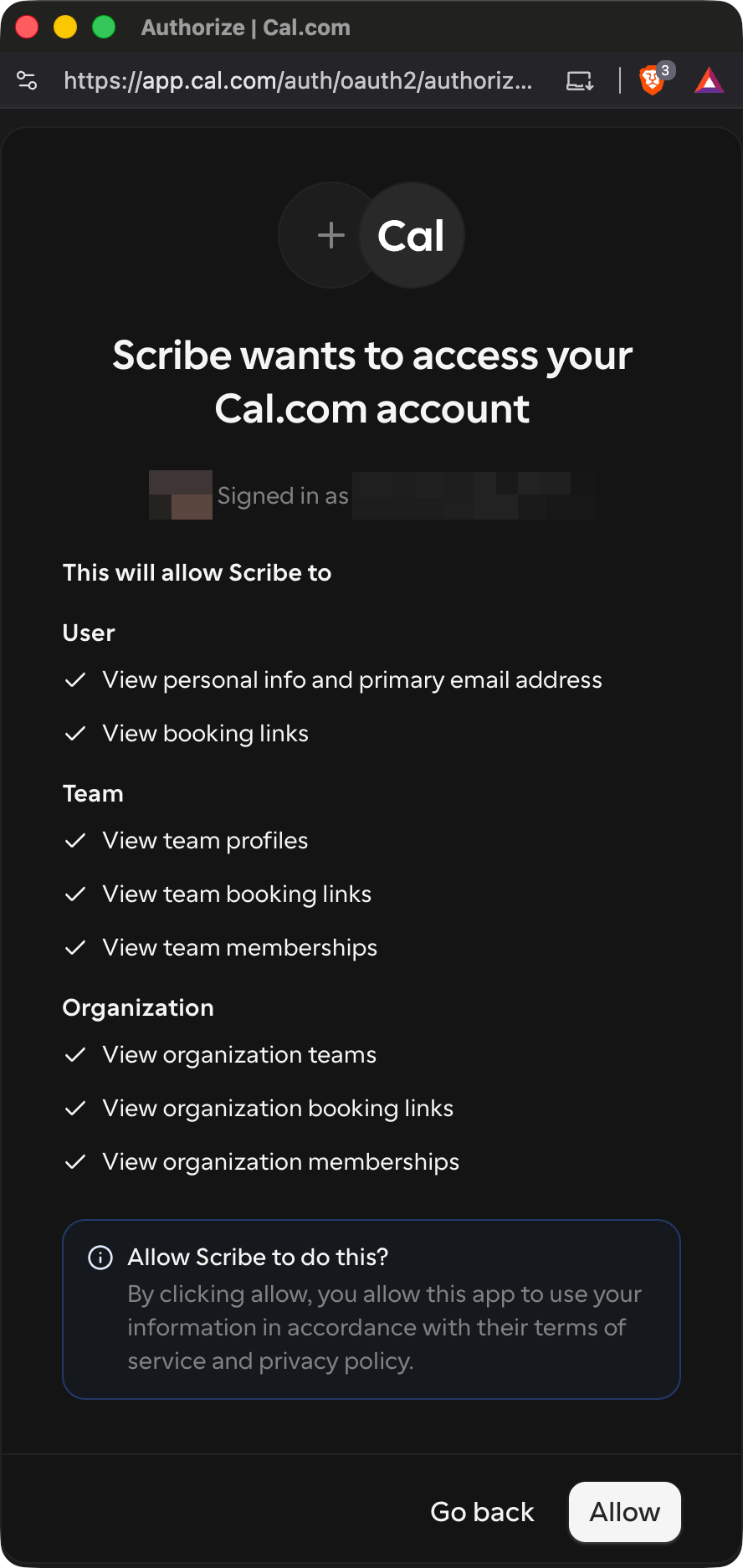
 Once you authorize, the integration connects automatically. Click **Allow** to complete the integration.
 ## Related articles
* [Calendly](/en/integrations/smart-fields/calendly-smart-fields): sync Calendly data into your signatures.
* [Chili Piper](/en/integrations/smart-fields/chili-piper-smart-fields): sync Chili Piper data into your signatures.
* [Assign teammates to a signature](/en/assign-teammates-to-a-signature): use Smart Field conditions to assign signatures automatically.
This documentation is built and hosted on [Mintlify](https://mintlify.com), a developer documentation platform.
## Related articles
* [Calendly](/en/integrations/smart-fields/calendly-smart-fields): sync Calendly data into your signatures.
* [Chili Piper](/en/integrations/smart-fields/chili-piper-smart-fields): sync Chili Piper data into your signatures.
* [Assign teammates to a signature](/en/assign-teammates-to-a-signature): use Smart Field conditions to assign signatures automatically.
This documentation is built and hosted on [Mintlify](https://mintlify.com), a developer documentation platform.