> ## Documentation Index
> Fetch the complete documentation index at: https://help.scribe-mail.com/llms.txt
> Use this file to discover all available pages before exploring further.
# Google Workspace (Server Side)
> Add Scribe signatures to your team's Google Workspace emails automatically from any device by routing outbound mail through Scribe's secure servers.
**Centralized one-click installation.** No teammate action needed. Users don't see signatures when composing emails. Your emails are processed through Scribe's secure servers for signature injection.
**Supported platforms:** Web, Desktop, Apple Mail, iOS, Android
## How it works
Server-side installation changes your mail routing, not your teammates' mailboxes. Nothing is installed on their devices, and no add-in runs in their email client. Instead, the setup below adds one hop to your outbound mail flow, and the signature is added to each message while it is in transit.
1. **A teammate sends an email.** Gmail accepts it from whatever client or device they used, so the same rule covers web, desktop, Apple Mail, iOS and Android. Tools that send through a teammate's mailbox are covered too: HubSpot sales emails, and any other CRM or sequencer connected to Gmail, pick up the signature with no extra setup, as long as the From address belongs to a teammate whose signature you have installed. A tool that sends from its own servers instead of through Gmail, such as HubSpot marketing email, never reaches this rule and gets no signature.
2. **Google Workspace routes the message to Scribe.** The content compliance rule you create below matches outbound and internal-sending mail and routes it to the Scribe host, `smtp.server.scribe-mail.com`, over TLS.
3. **Scribe adds the signature.** Scribe inserts the teammate's published signature, choosing the right [variant](/en/signature-variants) for the context, then re-signs the message so it still authenticates after the change, and stamps it with an `X-Scribe-Processed` header.
4. **The message returns to Google Workspace.** Scribe hands it back through the SMTP relay service, which is configured to accept connections only from Scribe's two IP addresses and only over TLS.
5. **Google Workspace delivers it.** The `X-Scribe-Processed` header stops the compliance rule matching a second time, so the message goes out to the recipient the same way any other message does.
Scribe adds the signature and its own headers: `X-Scribe-Processed`, a routing header telling the relay where to hand the message back, a refreshed `DKIM-Signature`, an ARC chain, and the `Content-Type` matching the rewritten body. Your recipients, subject, attachments and the text your teammate wrote are passed through unchanged.
## Installation guide
This is an advanced user feature. IT support is required to set up this integration.
* Users don't see signatures when composing an email.
* Your emails are processed through Scribe's secure servers to install signatures. Scribe cannot read or edit your emails.
* You can combine [cloud-based integration](/en/integrations/signatures/google-workspace-client-side) with server-side integration. If both are connected, Scribe defaults to cloud-based integration so users can see their signatures when composing emails.
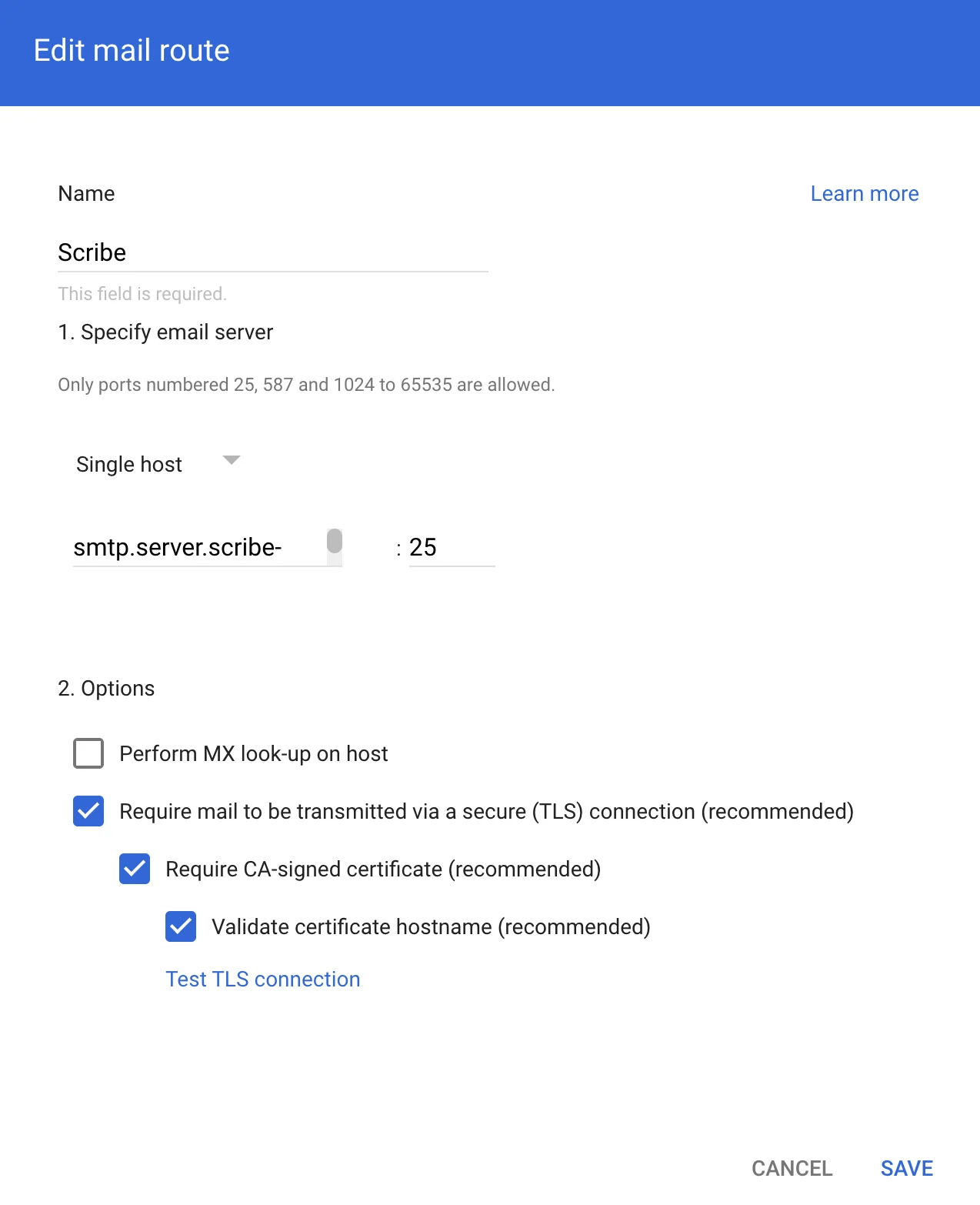
To route emails through Scribe's secure servers, create a host in Google Workspace Gmail. In Google Admin, go to **Apps → Google Workspace → Gmail**, then click 'Hosts'.
 Fill in the form with the following info:
**a. Name:** Scribe
**b. Select:** "Single host"
**c. Host name or IP:**
```text theme={null}
smtp.server.scribe-mail.com
```
**d. Port:** 25
**e. Select:** the options like in the screenshot below
Fill in the form with the following info:
**a. Name:** Scribe
**b. Select:** "Single host"
**c. Host name or IP:**
```text theme={null}
smtp.server.scribe-mail.com
```
**d. Port:** 25
**e. Select:** the options like in the screenshot below
 To receive emails back from Scribe for routing to recipients, go to **Apps → Google Workspace → Gmail** in Google Admin, then click 'Routing'.
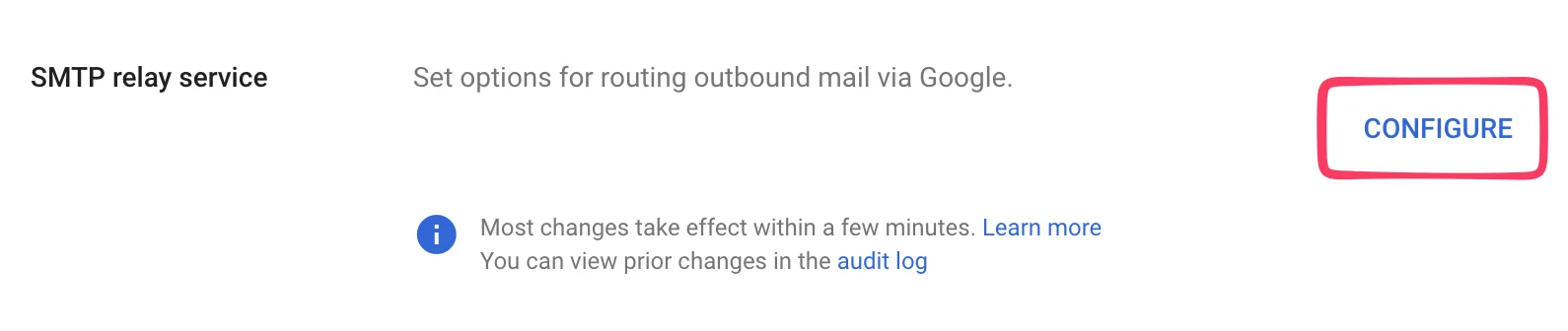
 On the next page, click **Configure** under "SMTP relay service".
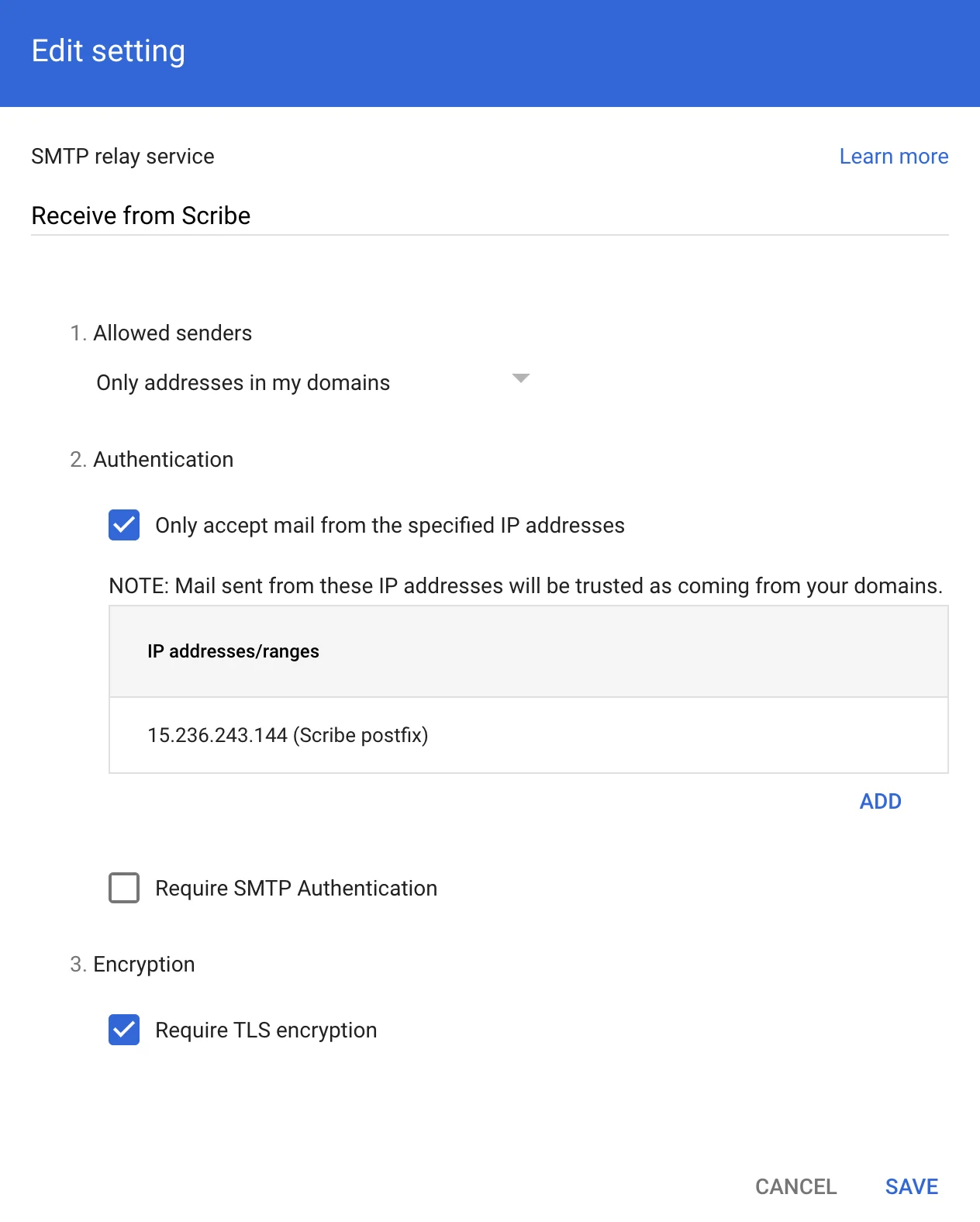
 Fill in the form with the following information:
**a. Description:** Receive from Scribe
**b. Authentication:** Check "Only accept mail from the specified IP addresses" Add:
```text theme={null}
15.236.243.144
```
and
```text theme={null}
51.44.50.107
```
**c. Select:** "Require TLS encryption"
**d. Click:** "Save"
Fill in the form with the following information:
**a. Description:** Receive from Scribe
**b. Authentication:** Check "Only accept mail from the specified IP addresses" Add:
```text theme={null}
15.236.243.144
```
and
```text theme={null}
51.44.50.107
```
**c. Select:** "Require TLS encryption"
**d. Click:** "Save"
 In Google Admin, go to **Apps → Google Workspace → Gmail**, then click 'Compliance'.
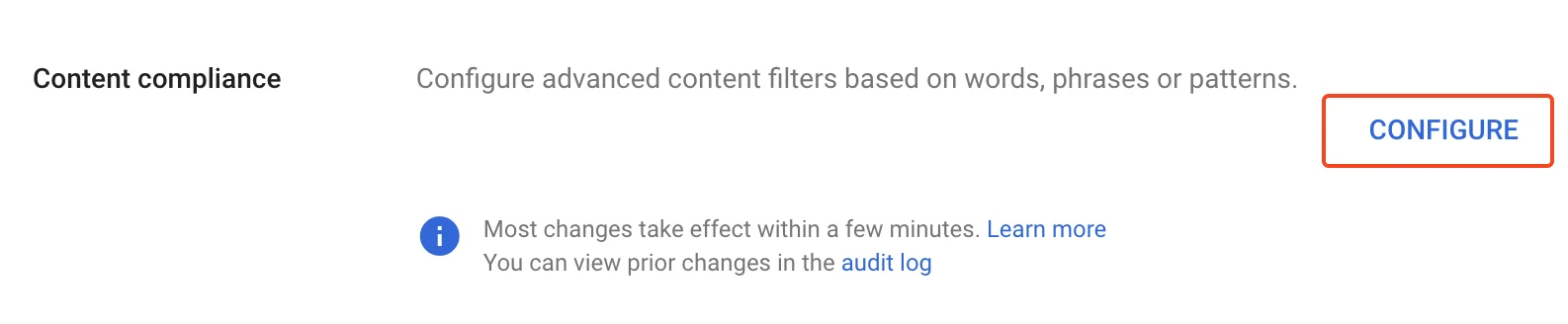
 On the next page, click **Configure** under "Content compliance".
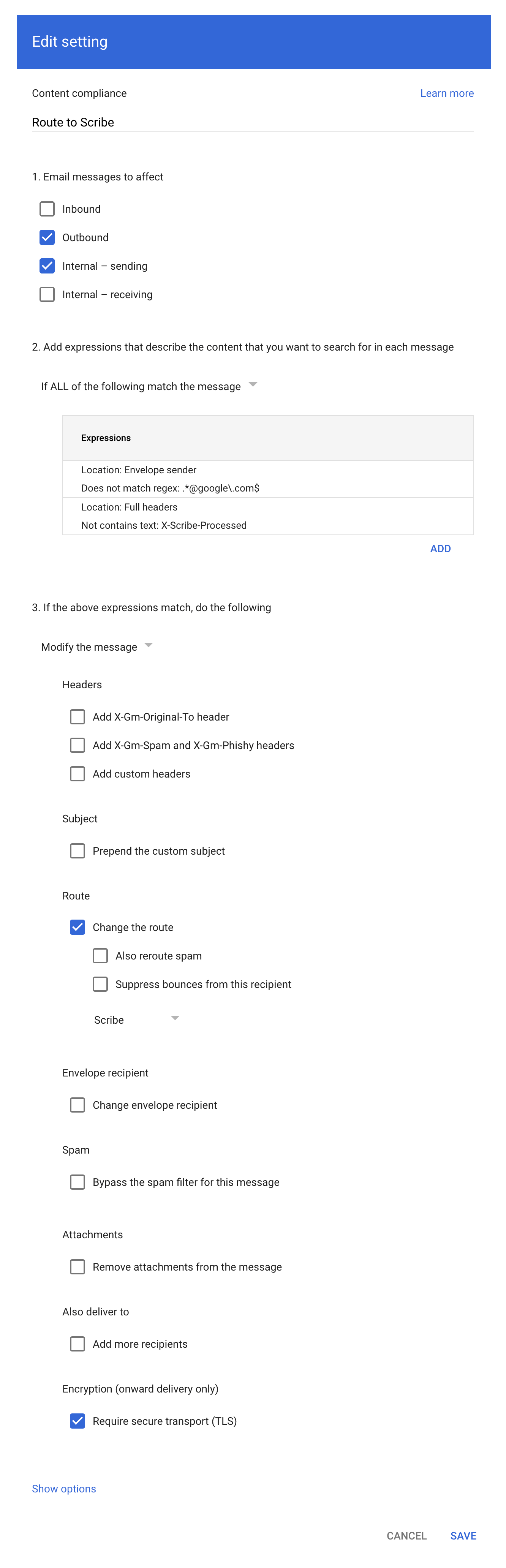
 Fill in the form as shown in the screenshot:
**a. Description:** Route to Scribe
**b. Select:** "Outbound" and "Internal - sending" in "Email messages to affect"
**c. In the second configuration item ("Add expressions…"),** set the matching to **"If ALL of the following match the message"**, then click **ADD** and add these two Advanced content match expressions:
* Location: Full headers, Match type: Does not contain text, Content: `X-Scribe-Processed`. This prevents processing your email multiple times.
* Location: Envelope sender, Match type: Does not match regex, Regexp: `.*@google\.com$`. This excludes system mail such as Google Forms receipts (from [forms-receipts-noreply@google.com](mailto:forms-receipts-noreply@google.com)), which Google's SMTP relay rejects if routed through Scribe.
**d. In the third configuration item,** change the route to the host you created in part 1 of this guide.
**e. Select:** "Require secure transport (TLS)"
**f. Click:** "Save"
Fill in the form as shown in the screenshot:
**a. Description:** Route to Scribe
**b. Select:** "Outbound" and "Internal - sending" in "Email messages to affect"
**c. In the second configuration item ("Add expressions…"),** set the matching to **"If ALL of the following match the message"**, then click **ADD** and add these two Advanced content match expressions:
* Location: Full headers, Match type: Does not contain text, Content: `X-Scribe-Processed`. This prevents processing your email multiple times.
* Location: Envelope sender, Match type: Does not match regex, Regexp: `.*@google\.com$`. This excludes system mail such as Google Forms receipts (from [forms-receipts-noreply@google.com](mailto:forms-receipts-noreply@google.com)), which Google's SMTP relay rejects if routed through Scribe.
**d. In the third configuration item,** change the route to the host you created in part 1 of this guide.
**e. Select:** "Require secure transport (TLS)"
**f. Click:** "Save"
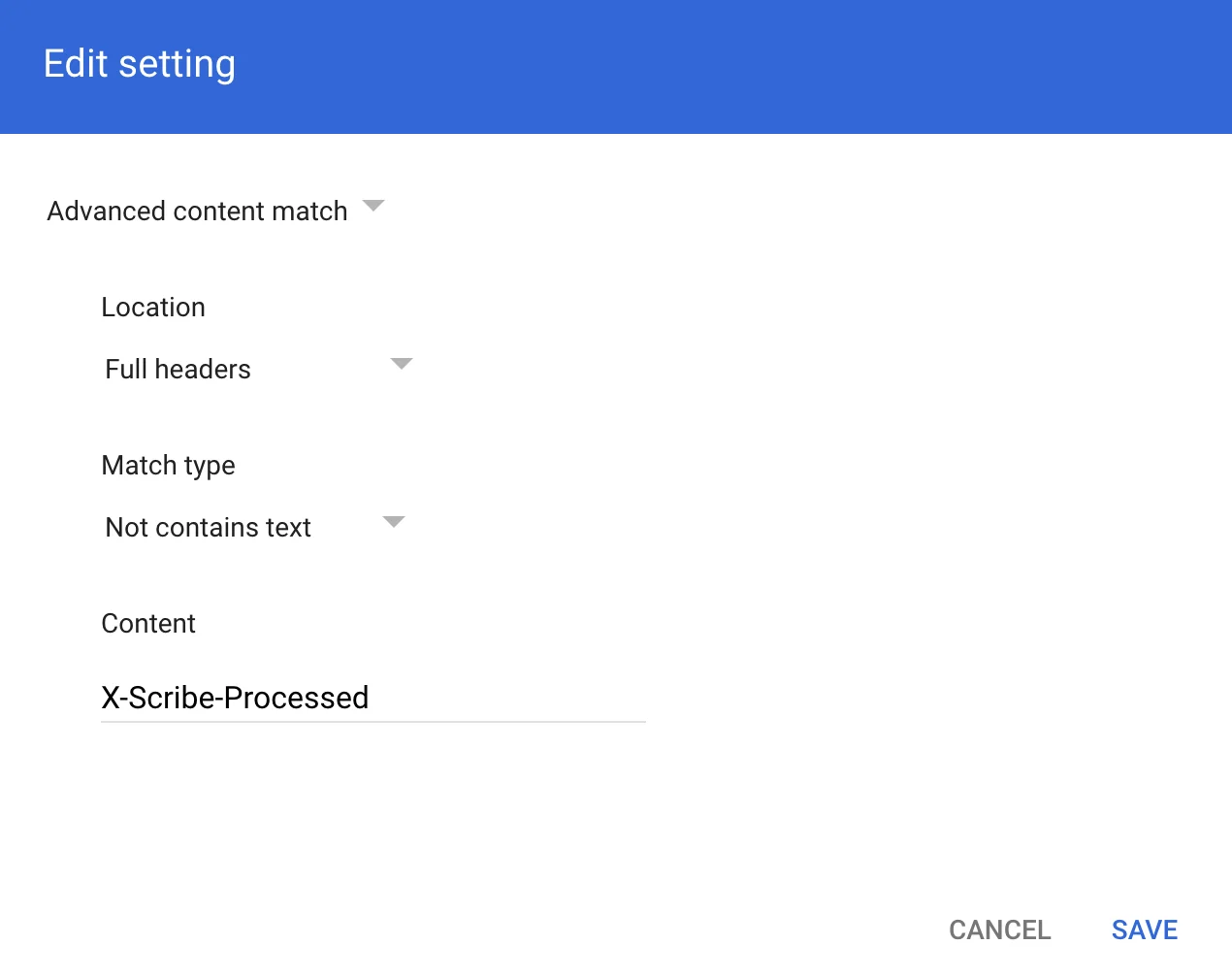
 In the Compliance rule expression modal, add the info as shown in the screenshot:
Advanced content match:
* **Location:** Full headers
* **Match type:** Not contains text
* **Content:** X-Scribe-Processed
In the Compliance rule expression modal, add the info as shown in the screenshot:
Advanced content match:
* **Location:** Full headers
* **Match type:** Not contains text
* **Content:** X-Scribe-Processed
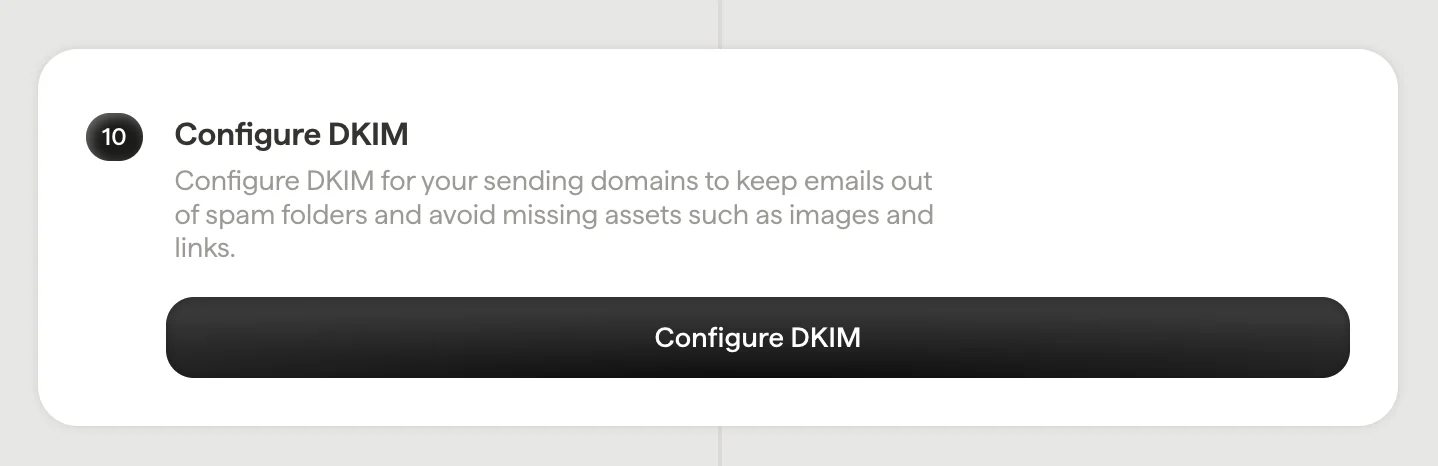
 Configure DKIM for your [sending domains](/en/configure-your-sending-domain) to keep emails out of spam folders and avoid missing assets such as images and links.
Click **Configure DKIM** in Scribe to start the configuration.
Configure DKIM for your [sending domains](/en/configure-your-sending-domain) to keep emails out of spam folders and avoid missing assets such as images and links.
Click **Configure DKIM** in Scribe to start the configuration.
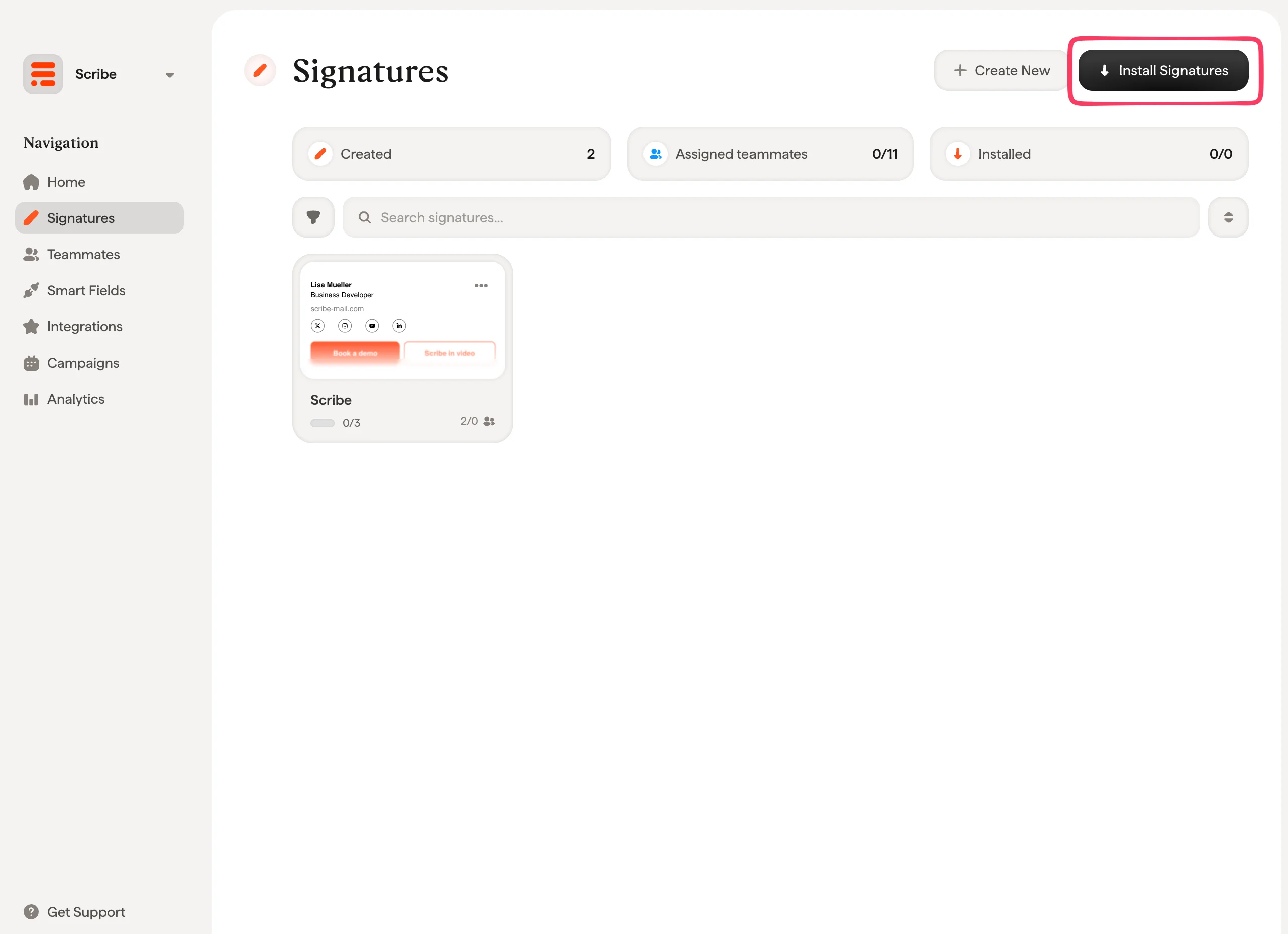
 From your signatures list, [install all signatures at once for your teammates](/en/install-signatures) or install them one by one for a progressive rollout.
 ## IT and security FAQ
Questions that come up most often when an IT team reviews this integration.
Only what the content compliance rule matches: outbound mail and internal-sending mail from your organization. Two exclusions are built into the rule when you fill in the Content compliance form.
* Messages whose full headers already contain `X-Scribe-Processed`, so nothing is processed twice.
* Messages whose envelope sender matches `.*@google\.com$`, which covers Google system mail such as Google Forms receipts. Google's SMTP relay rejects that mail if it is routed through Scribe.
Inbound mail from outside your organization is never routed to Scribe.
Yes, in both directions, and the setup enforces it. The compliance rule uses **Require secure transport (TLS)** when it hands mail to Scribe, and the SMTP relay service uses **Require TLS encryption** when Scribe hands it back.
Outbound, your mail flow connects to the Scribe host on port 25:
```text theme={null}
smtp.server.scribe-mail.com
```
Inbound, Scribe returns processed mail from two fixed IP addresses, which are the only ones the SMTP relay service is configured to accept:
```text theme={null}
15.236.243.144
51.44.50.107
```
It affects DKIM, and the **Configure DKIM** step in the guide is what handles it. Inserting a signature changes the message body, which invalidates the DKIM signature Google Workspace applied before the message left. Scribe therefore re-signs the message on the way back out.
Once DKIM is configured, two things are added to every processed message:
* **A fresh `DKIM-Signature`**, signed with a key Scribe generates for your domain and published as a `scribe._domainkey` record. It covers the `From`, `To`, `Cc`, `Subject` and `Message-ID` headers along with the body.
* **An ARC chain** ([RFC 8617](https://datatracker.ietf.org/doc/html/rfc8617)): `ARC-Authentication-Results`, `ARC-Message-Signature` and `ARC-Seal`. These record the authentication results the message carried when Scribe received it, so a receiving server can tell that an authorized intermediary modified it rather than reading the change as tampering.
SPF is unaffected, because Google Workspace still performs the final delivery and the message reaches your recipient from Google's own sending infrastructure.
Re-signing only happens once your DKIM record is validated, which is why the guide treats that step as required rather than optional. Skip it and your recipients receive mail whose original signature no longer verifies.
Two things. Scribe stamps every message it handles with an `X-Scribe-Processed` header, and the content compliance rule matches only messages whose full headers do **not** contain it, so a message coming back from Scribe no longer matches and is delivered normally.
As a second guard, Scribe checks whether the body already carries the signature before inserting one. A message that reaches it twice still goes out with a single signature.
Because the signature is added after the message leaves the mailbox, not in the compose window. For the same reason, the copy saved in the sender's Sent folder is the version from before Scribe processed it, so it does not show the signature either. The recipient always receives the full signature.
If compose visibility matters to your teams, connect the [cloud-based integration](/en/integrations/signatures/google-workspace-client-side) as well. When both are connected, Scribe defaults to cloud-based so teammates see their signature while writing, and server side keeps covering the clients that cloud-based cannot reach.
Yes, if you publish them. [Signature variants](/en/signature-variants) work with server-side installation, and Scribe picks one as it processes each message:
* **On-reply**, when the subject starts with a reply or forward prefix such as `Re:`, `Fw:` or `Fwd:`, including the localized equivalents.
* **Internal**, when every recipient is on the same domain as the sender.
* **Primary** in every other case.
Scribe inserts the signature, re-signs the message and hands it straight back to Google Workspace. It does not act on what your teammates write: the recipients, the subject, the attachments and the body text are passed through unchanged.
Scribe's controls around this are verified as part of its [SOC 2 Type II process](/en/what-scribe-does-concerning-security). See [Product security](/en/security/product-security) and [Infrastructure security](/en/security/infrastructure-security) for the detail your security review will ask for, or the [Trust Center](https://security.scribe-mail.com) for the certifications themselves.
Disable the content compliance rule in Google Admin. Mail then leaves Google Workspace directly again, with no Scribe hop and no signature added. The host and SMTP relay entries can stay in place, unused, until you decide whether to remove them.
## Related articles
* [Integrations overview](/en/integrations-overview): all the ways to deploy Scribe signatures, cloud or server side.
* [Microsoft 365 (server side)](/en/integrations/signatures/microsoft-365-server-side): route mail through Scribe for all-device coverage.
* [Signature variants](/en/signature-variants): on-reply and internal variants for Outlook and server side.
This documentation is built and hosted on [Mintlify](https://mintlify.com), a developer documentation platform.
## IT and security FAQ
Questions that come up most often when an IT team reviews this integration.
Only what the content compliance rule matches: outbound mail and internal-sending mail from your organization. Two exclusions are built into the rule when you fill in the Content compliance form.
* Messages whose full headers already contain `X-Scribe-Processed`, so nothing is processed twice.
* Messages whose envelope sender matches `.*@google\.com$`, which covers Google system mail such as Google Forms receipts. Google's SMTP relay rejects that mail if it is routed through Scribe.
Inbound mail from outside your organization is never routed to Scribe.
Yes, in both directions, and the setup enforces it. The compliance rule uses **Require secure transport (TLS)** when it hands mail to Scribe, and the SMTP relay service uses **Require TLS encryption** when Scribe hands it back.
Outbound, your mail flow connects to the Scribe host on port 25:
```text theme={null}
smtp.server.scribe-mail.com
```
Inbound, Scribe returns processed mail from two fixed IP addresses, which are the only ones the SMTP relay service is configured to accept:
```text theme={null}
15.236.243.144
51.44.50.107
```
It affects DKIM, and the **Configure DKIM** step in the guide is what handles it. Inserting a signature changes the message body, which invalidates the DKIM signature Google Workspace applied before the message left. Scribe therefore re-signs the message on the way back out.
Once DKIM is configured, two things are added to every processed message:
* **A fresh `DKIM-Signature`**, signed with a key Scribe generates for your domain and published as a `scribe._domainkey` record. It covers the `From`, `To`, `Cc`, `Subject` and `Message-ID` headers along with the body.
* **An ARC chain** ([RFC 8617](https://datatracker.ietf.org/doc/html/rfc8617)): `ARC-Authentication-Results`, `ARC-Message-Signature` and `ARC-Seal`. These record the authentication results the message carried when Scribe received it, so a receiving server can tell that an authorized intermediary modified it rather than reading the change as tampering.
SPF is unaffected, because Google Workspace still performs the final delivery and the message reaches your recipient from Google's own sending infrastructure.
Re-signing only happens once your DKIM record is validated, which is why the guide treats that step as required rather than optional. Skip it and your recipients receive mail whose original signature no longer verifies.
Two things. Scribe stamps every message it handles with an `X-Scribe-Processed` header, and the content compliance rule matches only messages whose full headers do **not** contain it, so a message coming back from Scribe no longer matches and is delivered normally.
As a second guard, Scribe checks whether the body already carries the signature before inserting one. A message that reaches it twice still goes out with a single signature.
Because the signature is added after the message leaves the mailbox, not in the compose window. For the same reason, the copy saved in the sender's Sent folder is the version from before Scribe processed it, so it does not show the signature either. The recipient always receives the full signature.
If compose visibility matters to your teams, connect the [cloud-based integration](/en/integrations/signatures/google-workspace-client-side) as well. When both are connected, Scribe defaults to cloud-based so teammates see their signature while writing, and server side keeps covering the clients that cloud-based cannot reach.
Yes, if you publish them. [Signature variants](/en/signature-variants) work with server-side installation, and Scribe picks one as it processes each message:
* **On-reply**, when the subject starts with a reply or forward prefix such as `Re:`, `Fw:` or `Fwd:`, including the localized equivalents.
* **Internal**, when every recipient is on the same domain as the sender.
* **Primary** in every other case.
Scribe inserts the signature, re-signs the message and hands it straight back to Google Workspace. It does not act on what your teammates write: the recipients, the subject, the attachments and the body text are passed through unchanged.
Scribe's controls around this are verified as part of its [SOC 2 Type II process](/en/what-scribe-does-concerning-security). See [Product security](/en/security/product-security) and [Infrastructure security](/en/security/infrastructure-security) for the detail your security review will ask for, or the [Trust Center](https://security.scribe-mail.com) for the certifications themselves.
Disable the content compliance rule in Google Admin. Mail then leaves Google Workspace directly again, with no Scribe hop and no signature added. The host and SMTP relay entries can stay in place, unused, until you decide whether to remove them.
## Related articles
* [Integrations overview](/en/integrations-overview): all the ways to deploy Scribe signatures, cloud or server side.
* [Microsoft 365 (server side)](/en/integrations/signatures/microsoft-365-server-side): route mail through Scribe for all-device coverage.
* [Signature variants](/en/signature-variants): on-reply and internal variants for Outlook and server side.
This documentation is built and hosted on [Mintlify](https://mintlify.com), a developer documentation platform.